
The problem with a standard ATC export
In the default view of the ATC results, you see the check name, priority and message text. That is enough for a quick overview, but not for an LLM. When you paste this information along with your ABAP code into ChatGPT or Claude, the model has to guess which line is meant. With short methods that still works; with longer includes or reports the fix quickly becomes imprecise or simply wrong.
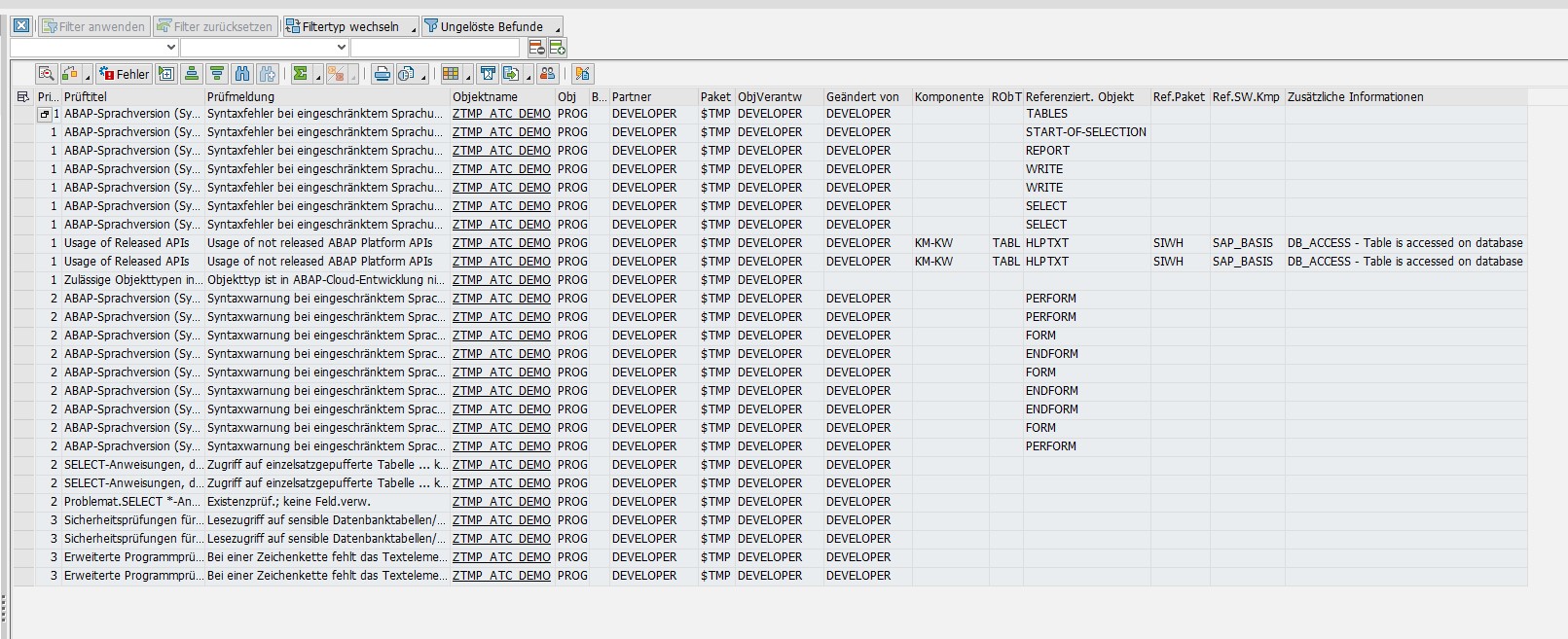
The solution: show additional fields
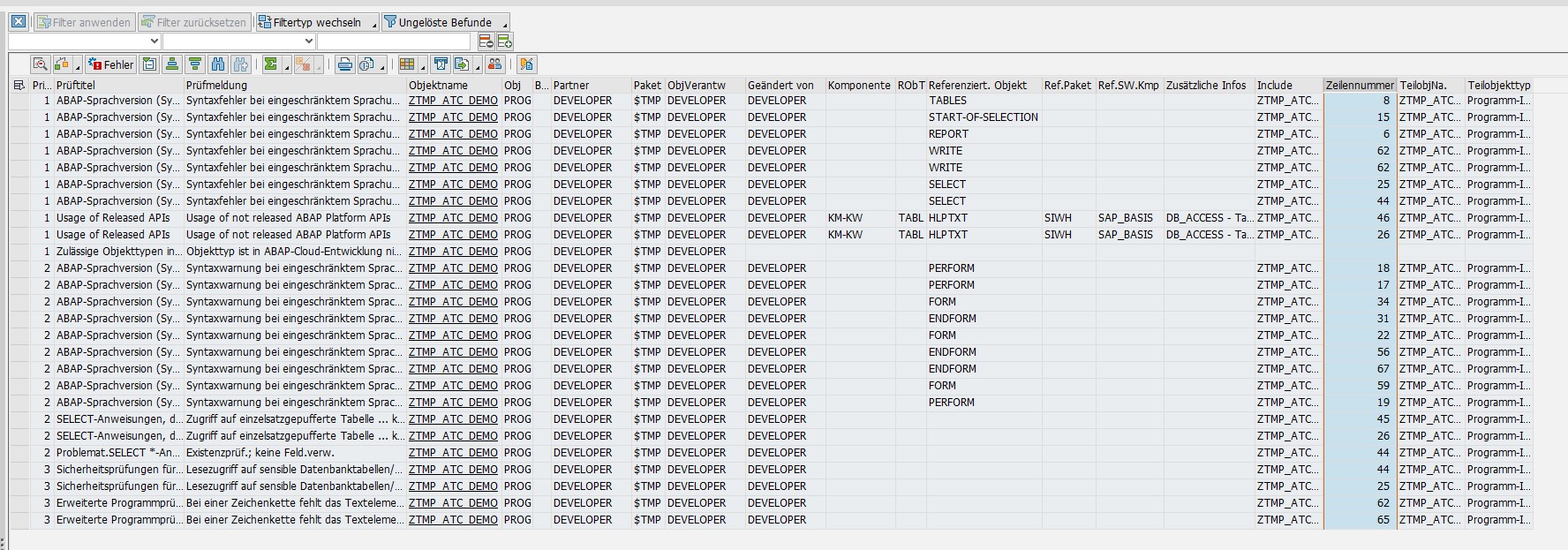
At the top of the ATC results list there is a button labelled "Show Additional Fields". One click and the list expands with several new columns: line number, include name, object type and further context information that the LLM can evaluate directly.

After enabling it, the list looks considerably richer: every finding is now linked to a specific line and include.
Export and input into the LLM
Export the extended list via the SAP GUI menu: List → Export → Spreadsheet. The resulting file contains all visible columns, including the line information.
Give the LLM both: the complete ABAP code of the affected include or method, and below it the ATC export with all fields. The model can then use the line numbers to orient itself and knows exactly where in the code to make changes.
Why this makes a difference
With line number and include name in the export, the typical LLM weaknesses for this use case disappear:
- No more back-and-forth about exactly where the finding applies
- Targeted changes instead of broad rewrites
- Multiple findings can be handed over in one go without the fixes conflicting with each other
This is particularly useful with legacy code: long reports or includes where you don't have every line in your head. The LLM handles the mapping, you review the result.
Conclusion
One click on "Show Additional Fields", export as spreadsheet, paste both into the LLM — that's it. Anyone who regularly works with ATC findings will quickly notice how much more precise the suggestions become.