
Prerequisites
- SAP Integration Suite Standard or Premium Edition (EMIS is not available in the Free Tier or in trial accounts)
- The
Integration_Provisionerrole for capability activation - The
EventMeshManageBrokerrole (included in theEventMeshAdminrole collection) for broker initiation - A subaccount with Cloud Foundry enabled, and a space within it
- Entitlement
SAP Integration Suite, Event Meshwith planmessage-clientassigned to your subaccount
If the entitlement is missing, add it first under the subaccount's "Entitlements" section. SAP provides a step-by-step guide in the Enable Now hands-on exercise for Entitlement and Capability activation.
For a refresher on the underlying messaging concepts, the SAP tutorial Learn Messaging Concepts is a solid starting point.
Step 1: Activate the Capability and Initiate the Message Broker
In the Integration Suite Launchpad, open "Manage Capabilities" (or "Add Capabilities" on first access) and check "Manage Business Events". That is the Event Mesh capability. After clicking "Activate", the EMIS tile appears on the home page.

One step more: Activating the capability is not enough on its own. The first time you open the EMIS capability, a setup screen shows the broker specifications (spool size, max message size, etc.). Click "Activate" here as well to start the message broker. This is a one-time activity per EMIS instance. Without it, neither queues nor message clients can be created.
This step requires the EventMeshManageBroker role, which is part of the EventMeshAdmin role collection. Without it, the EMIS tile shows no buttons and no Event Mesh entries appear in the IS navigation.
A Brief Concept Break: Three Objects, One Goal
If you are new to EMIS, three terms come up immediately and it helps to see how they fit together:
A Message Client is the connection object between a sender or receiver and the EMIS broker. Every application that publishes or consumes events gets its own message client with its own namespace. The namespace follows the convention <orgname>/<clientname>/<uniqueID> (exactly 3 segments, max. 24 characters each), for example myorg/s4h/01. It defines the client's address space in the broker.
A Queue is the persistent store for messages. It holds events until a consumer picks them up and survives short consumer outages. Without a queue, events are lost the moment no consumer is listening.
A Topic Subscription links a topic pattern to a queue. S/4HANA publishes events to topics like myorg/s4h/01/ce/sap/s4/beh/businesspartner/v1/BusinessPartner/Created. The ce/ prefix is added by the CloudEvents standard. A subscription with the pattern myorg/s4h/01/* routes everything under that path into the queue. Without this link, events land in the broker but nothing catches them.
The diagram below shows how these three objects fit together on the BTP side — a detailed view of the EMIS layer from the Part 1 architecture overview:
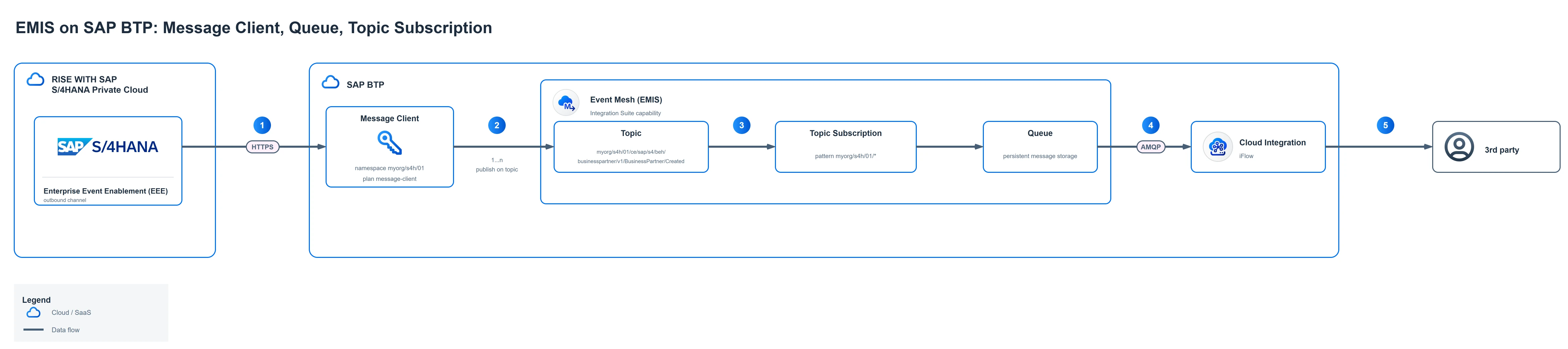
The numbered steps in the diagram:
- The EEE framework connects via HTTPS; the message client with its namespace
myorg/s4h/01is the access object to the broker. - The client publishes events on 1...n topics within its namespace, here the CloudEvents topic for
BusinessPartner/Created. - The topic subscription matches each topic against its pattern
myorg/s4h/01/*and routes matching events into the queue, where they persist until acknowledged. - The iFlow in Cloud Integration consumes the events from the queue via AMQP.
- The iFlow hands the events over to the third-party system.
Step 2: Create a Message Client
The message client is not created in the Integration Suite UI but in the BTP Cockpit: Subaccount › Services › Instances › Create.
In the dialog:
- Service: SAP Integration Suite, Event Mesh
- Plan: message-client
- Instance name: your choice, e.g.
cfSpace-emis-client
The next screen asks for optional JSON parameters. This is where the service descriptor comes in. Without it the message client cannot publish or consume anything, because no access rules are defined:
{
  "namespace": "myorg/s4h/01",
  "rules": {
    "topicRules": {
      "publishFilter": ["${namespace}/*"],
      "subscribeFilter": ["${namespace}/*"]
    },
    "queueRules": {
      "publishFilter": ["${namespace}/*"],
      "subscribeFilter": ["${namespace}/*"]
    }
  }
}
Notes on the fields (full syntax reference: Service Descriptor Syntax):
namespace: Sets the namespace. Convention:<orgname>/<clientname>/<uniqueID>, exactly 3 segments.rules.topicRules.publishFilter: Which topics may the client publish to? SAP recommends staying within your own namespace, so${namespace}/....rules.topicRules.subscribeFilter: Which topics may the client consume?rules.queueRules: Same logic for direct queue operations. SAP recommends publishing to topics rather than directly to queues.${namespace}is a placeholder that the broker replaces with the configured namespace value.
After saving, the service instance appears in the Cockpit list and the message client is visible in the Integration Suite UI under Configure › Event Mesh, Overview tab.
Step 3: Create a Queue
In the Integration Suite UI, go to Configure › Event Mesh, open the Queues tab, and click "Create".
Name: Free text, max. 164 characters. Allowed: alphanumeric, _, ., -, and / as a segment separator. A descriptive name works well, either topic-based like sap/s4/beh/businesspartner/v1/BusinessPartner or more generic like s4h-businesspartner-events.
Access Type: NON EXCLUSIVE is the right choice for most scenarios: multiple consumers share the queue in a round-robin schedule. EXCLUSIVE reserves the queue for exactly one consumer.
Properties worth a look:
| Property | Default / Max | When to adjust |
|---|---|---|
| Queue Size | 1.5 GB / 1.5 GB | Plan monitoring if event volume is high |
| Message Size | 1 MB / 1 MB | Fixed in EMIS; larger payloads need splitting before publish |
| Max Unacknowledged Messages | configurable | Prevents a slow consumer from stalling the queue |
| Max Redelivery Count | 0 / 255 | 0 = unlimited retries; combine with a Dead Message Queue for production |
| Max Time-to-Live | 7 days / 7 days | Unconsumed messages are deleted after this duration |
Dead Message Queue (DMQ): A separate queue where messages land when they exceed the redelivery count or TTL. The DMQ must be created as its own queue first. Strongly recommended for production scenarios.
Step 4: Create a Topic Subscription
Open the queue detail view, go to the Subscriptions tab, and click "Create". Enter the topic pattern whose incoming messages should be routed into this queue.
For all Business Partner events:
myorg/s4h/01/ce/sap/s4/beh/businesspartner/v1/BusinessPartner/*The * at the end matches all subtypes (Created, Changed, ...) under that path. A broader pattern that captures all S/4 events for this client:
myorg/s4h/01/*The namespace part (myorg/s4h/01) must match the namespace of the message client. The ce/ segment is the CloudEvents prefix that S/4HANA adds automatically.
Topic strings require at least two segments and may not exceed 150 characters or 20 segments.
Step 5: Smoke Test Without S/4HANA
Before S/4HANA enters the picture, the setup can be verified directly in the UI.
In the IS navigation, go to Test › Event Mesh, select the message client you created, choose a queue or a topic within the subscribed range, and publish a simple JSON payload.
Under Monitor › Event Mesh the message should then appear. If it does, the capability, message client, queue, and topic subscription are all wired up correctly.
If no message arrives, check the namespace in the service descriptor and whether the topic pattern in the subscription actually covers the topic string used in the test.
What Is Next in Part 3?
The BTP side is ready. Part 3 covers the S/4HANA PCE system: opening the outbound HTTPS network route, setting up the daemon user and roles, and importing the certificate via STRUST. These are the prerequisites before the channel in /n/IWXBE/CONFIG can be configured. Part 4 covers the channel setup in /n/IWXBE/CONFIG, including the service key and a known caveat (SAP Note 3461547).
Sources
- Event Mesh in SAP Integration Suite — SAP Help Portal (capability activation, message client, queue, topic subscription, service descriptor)
- SAP Note 3461547 — EMIS caveats, roadmap, known limitations
- Learn Messaging Concepts — SAP Tutorial on Event Mesh fundamentals
- Create an Event Mesh Service Instance — SAP Tutorial, namespace convention
- Entitlement and Capability Activation — SAP Enable Now Hands-on
- Meet your new friend EMIS — SAP Community (KStrothmann, 2024)
- SAP S/4HANA direct connectivity with EMIS — SAP Community (prashantrakheja, 2024)