
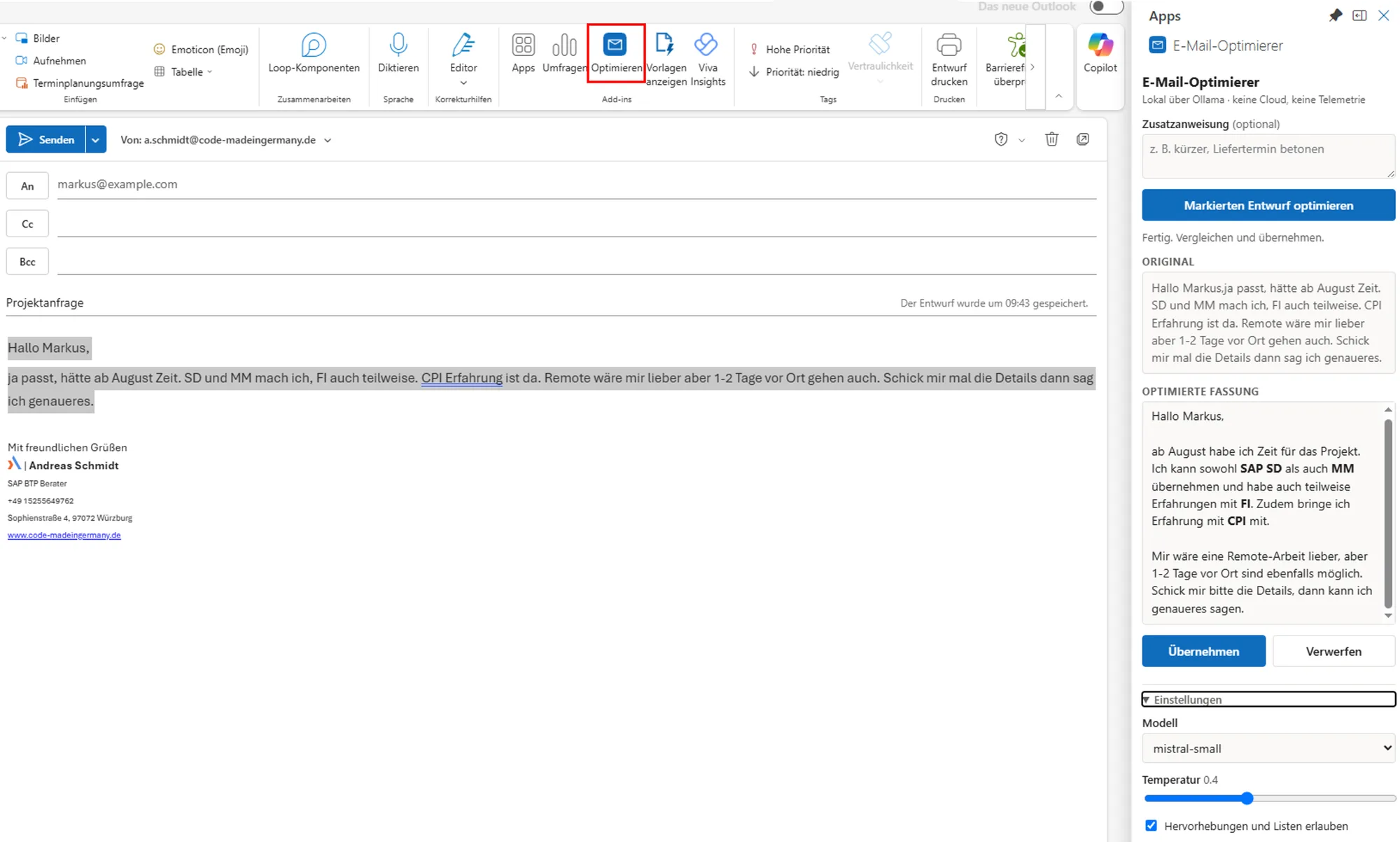
Why I Switched
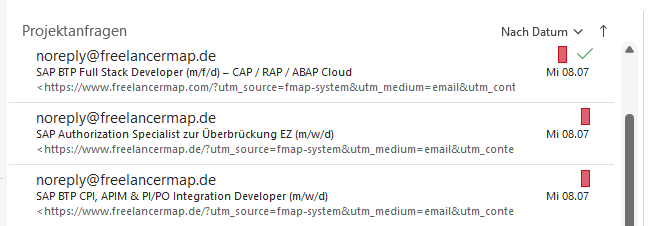
I had just categorized my mails and wanted to actually work with the categories day to day. The way Outlook Classic displays them never won me over.
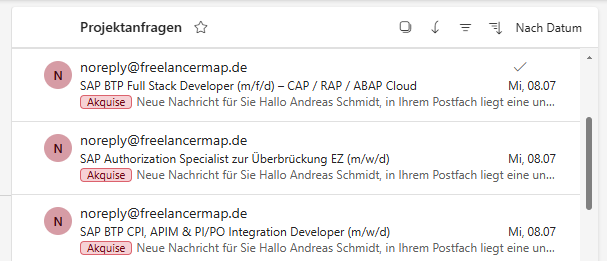
In the new Outlook, the same mailbox looks much tidier. So I flipped the switch. The switch takes one click, and the categories immediately looked the way I wanted them. Only the button of my email optimizer was gone, and there was no way to put it back.
The New Outlook Cannot Run VBA
My first question to Claude Code was how to get my macro into the new Outlook. There is simply no way to do that. The new Outlook is not a reworked Outlook Classic; at its core it is Outlook's web interface in an app shell. It has no VBA engine and no COM add-ins. Extensions only work as web add-ins built on Office.js.
Going back to Outlook Classic was out; I had just switched for a reason. A separate tool next to Outlook was not an option either, since the tool should keep living inside the mail. So I ported the macro as a web add-in, under the same constraint as before: Ollama runs locally on my machine, and the mails stay there too.
A Small Server in Between
Web add-ins must be served over HTTPS. If the panel had called Ollama directly at
http://localhost:11434, I would have had to deal with mixed content, CORS, and Ollama's origin
configuration. Instead, the small local server that has to serve the panel anyway does a second job and
forwards all API requests to Ollama. To the browser, everything comes from the same origin, and the three
problems never come up in the first place.
Outlook (new) --> Panel       https://localhost:3000
                    |  /api/chat (same-origin)
                    v
                 server.js    local HTTPS server + proxy
                    |
                    v
                 Ollama       http://localhost:11434
The server is a single Node script without npm dependencies. The model's answer streams live into the panel and can be cancelled at any time. So that I do not have to start the server by hand before every mail, an npm script sets up autostart without opening a console window.
When Claude Code wanted to run the autostart script to test it, by the way, its own permission system stepped in, because I had only asked what everyday usage would look like and had not approved any autostart. It was set up only after checking back with me. From a tool that could anchor programs in autostart without asking, that is exactly the behavior you want.
The Port
The port itself was unspectacular. Claude Code analyzed the old macro, captured its behavior in a specification, and built the new add-in from that. After a few sessions the optimizer ran as before, including the small rules from the macro. "Hi Max" does not turn into "Dear Mr. Mustermann", and an accidentally selected signature comes back untouched.
In one place I used the opportunity to improve things. The macro wrote the optimized version straight into the mail and then offered to undo everything. The add-in shows the suggestion in the panel first, and it only goes into the mail when I click Apply. That is a lot more relaxed than the undo juggling before.
The Installation
Every guide for installing your own add-ins, including Microsoft's, describes a dialog in Outlook that no longer exists in the new Outlook. What worked for me was the route through the Microsoft 365 admin center: Settings, Integrated apps, upload custom app. A few minutes later, the add-in showed up in Outlook.
Clicking the button did nothing, though, not even an error message came up. This had nothing to do with the add-in itself. The new Outlook runs inside a Windows sandbox that blocks all connections to your own machine by default, so the panel could not reach my local server. A one-time exemption, run as administrator, fixes it:
CheckNetIsolation.exe LoopbackExempt -a -n=Microsoft.OutlookForWindows_8wekyb3d8bbweAfter restarting Outlook, the button worked. I have not found this exemption in any add-in guide. So if you are looking at a button that does not react to clicks, this is the first place to check.
Pinning Instead of an Extra Click
In daily use it still bothered me that I had to open the panel through the Apps menu for every single draft. My first thought was to open it automatically for every new draft, but Office.js does not allow that. There are events for new drafts, but their handlers run in the background and are not allowed to open any UI.
The intended way is pinning. One line in the manifest (<SupportsPinning>) unlocks a pin
icon in the panel. Pinned once, the panel opens by itself for every further draft.
Because the panel now stays open permanently, its content survives the switch to the next mail. Without a countermeasure, a new draft would still show the suggestion for the old one, and Apply would have written it into the wrong mail. So the panel resets itself on every mail switch and cancels any request that is still running.
Takeaway
If you want to take your VBA automation into the new Outlook, you have to rebuild it as a web add-in; there is no other way. For me, the effort with Claude Code stayed manageable. The port was done in a few sessions, and the only real surprise was the loopback exemption for the sandbox. The optimizer works as before, just as an add-in instead of a macro, and everything still stays local. And the categories finally look the way I wanted them.
Sources
- Implement a pinnable task pane in Outlook — Microsoft Learn
- Sideload Outlook add-ins for testing — Microsoft Learn
- Ollama — local LLM runtime
Further reading
- Copilot Gone, Built My Own: a Local Email Optimizer for Outlook — the first part of this story