
Why PCE requires a service request
An S/4HANA system in the Private Cloud Edition runs in a landscape managed by SAP Enterprise Cloud Services (ECS) on a hyperscaler. Outbound HTTPS traffic does not leave the system directly; it passes through an SAP-operated web proxy, typically on port 3128. That proxy enforces an allowlist: only explicitly approved target URLs get through.
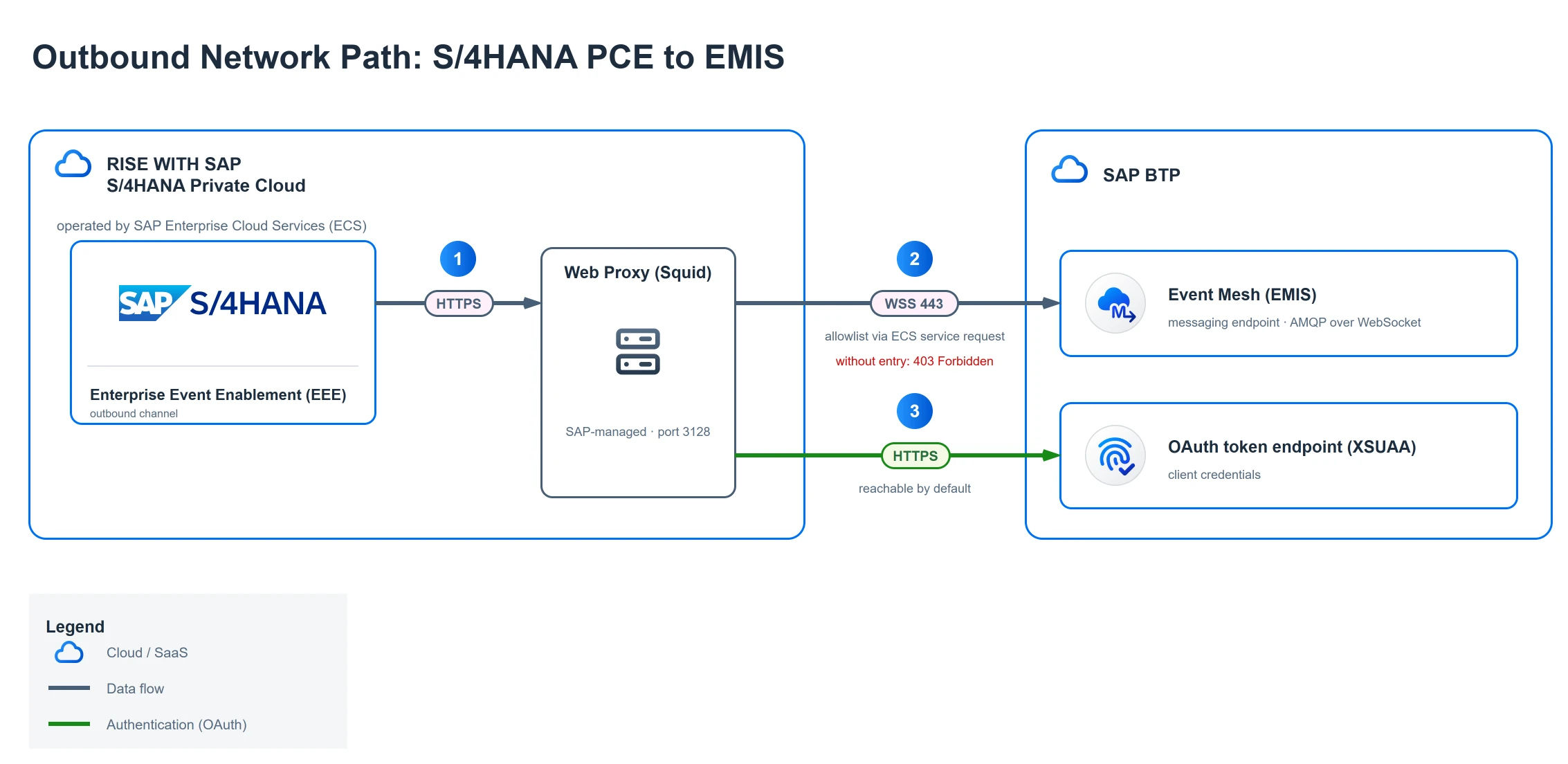
The numbered steps in the diagram:
- The EEE framework establishes the connection; outbound HTTPS traffic always passes through the SAP-managed web proxy (port 3128).
- The messaging endpoint (AMQP over WebSocket, port 443) is only reachable with an allowlist entry; the approval is requested via a service request to SAP ECS.
- The OAuth token endpoint lives on BTP and is reachable without any approval.
What happens without the approval? The connection attempt fails with a message like this in the ICM trace:
IcmConnInitClientSSL: Proxy connection failed to
HTTP:<root URL>:443 via Proxy:3128 failed (Proxy Returned 403 Forbidden)
SAP documents this itself in KBA 3454314 (using Cloud ALM registration as the example; the mechanism is identical). The consequence for our scenario: no matter how cleanly SM59, the OAuth client and the channel are configured, without the allowlist entry the connection to EMIS stays dead. And since SAP operates the proxy, you cannot do the approval yourself. It takes a service request to SAP ECS.
My advice from project experience: file this request at the very start of the project. In my projects, processing has taken one to three business days; that is not an official SAP commitment. If you only raise the request once channel configuration is due, you lose exactly those days.
Filing the service request
SAP for Me offers a ready-made request type for this: "Allowlist Squid Proxy access HTTP/HTTPS(80/443): OUTBOUND to EXTERNAL". There is no need to write anything up; the form asks for all the details.
Only one target needs to be allowlisted: the messaging host from messaging[amqp10ws].uri in the service key of the EMIS instance (part 2). It has the form eu10.a.eventmesh.integration.cloud.sap, where eu10 is just an example standing for your tenant's region. Enter only this hostname in the form, without protocol and without port.
The OAuth token endpoint does not need any allowlisting: it lives on BTP (<subdomain>.authentication.<region>.hana.ondemand.com) and is already reachable from the PCE landscape.
If you are unsure which request type fits, your Technical Service Manager at SAP can point you to it.
Customer-side prerequisites: roles and the daemon user
While the service request sits with SAP, we can take care of the homework on the customer side. The Enterprise Event Enablement framework (EEE) ships ready-made roles for this, documented by SAP in the Help Portal:
| Role | Purpose |
|---|---|
SAP_IWXBE_RT_XBE_ADM |
Administrator: RFC destination, OAuth client, logs, CCMS |
SAP_IWXBE_RT_XBE_BUSI |
Business administrator: maintain event topics on the channel |
SAP_IWXBE_RT_XBE_DAEMON |
Runtime role for the dedicated daemon user |
SAP_IWXBE_RT_XBE_MDT |
Metadata administrator (BROWSER_SRV service, event discovery) |
The roles can be assigned directly in PFCG: the admin role goes to whoever performs the configuration in part 4, the business role to the people who will maintain event topics later.
The most important piece is the daemon user. The EEE framework does not keep the connection to Event Mesh open per user session but through daemon sessions: background processes that run permanently, hold the connection and process the events. These sessions run under a dedicated technical user which you enter during channel creation in /IWXBE/CONFIG. SAP provides the role SAP_IWXBE_RT_XBE_DAEMON for this and states explicitly in the Help Portal that the role must be assigned for the daemon to start properly.
In concrete terms:
- Create a technical user (type System), for example
EEE_DAEMON. - Assign the role
SAP_IWXBE_RT_XBE_DAEMON. - Note down the user name; you will need it during channel creation in part 4.
Certificate import via STRUST
The S/4HANA system talks to two EMIS endpoints over TLS: the OAuth token endpoint and the messaging endpoint (AMQP over WebSocket). For the TLS handshake to succeed, the system has to trust the certificate chain of those endpoints.
The pragmatic approach, also described by SAP colleagues in the community:
- Copy the token endpoint from the service key (part 2); that is the URL in the
oa2.tokenendpointfield. - Open the URL in a browser. A login page appears, but that does not matter: we only care about the certificate.
- Via the padlock icon, display the certificate chain and export the root and intermediate certificates (Base-64/PEM).
- In STRUST, import both certificates into the SSL Client (Standard) node and add them to the certificate list. Do not forget to save.
- Check the same for the messaging host from
messaging[amqp10ws].uri. Usually both endpoints hang off the same root CA, in which case nothing else needs to be done.
Three notes on this:
- Chain, not leaf: Do not import the server certificate itself; import root and intermediate. Server certificates rotate frequently, the chain stays stable far longer.
- Watch the root transition: SAP cloud endpoints use DigiCert chains, and DigiCert is currently swapping the root CA for several SAP services (deadlines over the course of 2026). So when importing, do not blindly follow a guide; take the chain your own tenant actually presents.
- Anonymous fallback: Occasionally, hands-on blogs report that the import into SSL Client (Standard) did not take effect and only the SSL Client (Anonymous) node helped. If the connection test later throws SSL errors despite a correct chain, this is worth checking.
After the import, make the PSE change effective in the ICM (via SMICM) so the new chain is picked up on the next handshake.
Verification: is the network path up?
Once SAP has confirmed the request, you can verify the path without any channel existing yet. We simply create the SM59 destination that part 4 needs anyway:
- SM59, new destination, type G (HTTP connection to external server).
- Target host: the messaging host from the service key, path prefix
/protocols/amqp10ws. Important: do not enter a port. In my project the connection did not come up with an explicitly set port, even though the linked SAP blog states port 443. - In the HTTP proxy options, enter the SAP-managed web proxy of the PCE landscape (port 3128).
- On the "Logon & Security" tab: SSL active, SSL certificate "DFAULT SSL Client (Standard)" (not a typo: the PSE really is called DFAULT).
- Run the connection test.
Reading the result correctly: the test sends an unauthenticated request. On success, SM59 first prompts for a username and password; after you enter them, the test reports HTTP 401 (Unauthorized). That is not an error here but the success signal: the request made it past the proxy, the TLS handshake worked, and the EMIS endpoint answered. That is exactly what we wanted to know. This is a field heuristic, not an official SAP statement; the official connectivity check follows in part 4 with "Check Connection" in /IWXBE/CONFIG.
If you get a 403 Forbidden from the proxy instead (see the ICM trace), the allowlist approval is missing or the hostname in the request was incomplete. With SSL handshake errors (ICM trace: SSLERR_PEER_CERT_UNTRUSTED or similar), the certificate chain is missing in STRUST; go back to the previous section.
Checklist and outlook
With that, the PCE system is prepared:
- Service request filed with SAP ECS, messaging host allowlisted
- Admin and business roles assigned
- Daemon user created with the role
SAP_IWXBE_RT_XBE_DAEMON - Root and intermediate certificates imported in STRUST
- SM59 destination created, connection test returns HTTP 401
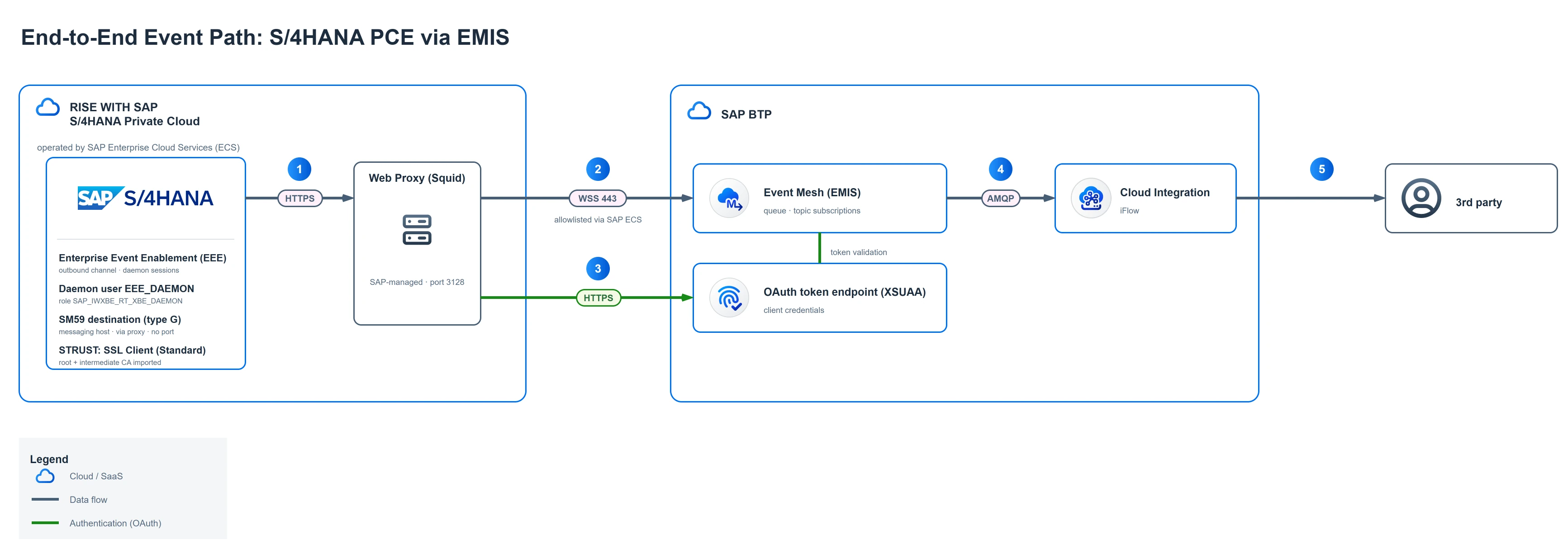
The numbered steps in the diagram:
- The EEE framework opens the connection from its daemon sessions (user
EEE_DAEMON); the path always leads through the SAP-managed web proxy. - After the allowlisting, the system reaches the EMIS messaging endpoint via AMQP over WebSocket.
- The system fetches its OAuth token via the client credentials flow from the token endpoint (XSUAA).
- The iFlow in Cloud Integration consumes the events from the queue via AMQP (part 2).
- The iFlow hands the events to the third-party system.
In part 4 we put it all together: OAuth client in OA2C_CONFIG, channel in /IWXBE/CONFIG (using the EMIS-specific form fields path, because "Create Channel via Service Key" does not work for EMIS yet), outbound binding and the first test event via /IWXBE/EEE_SUPPORT.
Sources
- Authorization Objects, Roles and Users — SAP Help Portal
- Enterprise Event Enablement — SAP Help Portal
- KBA 3454314: What to request of SAP Private Cloud (formerly ECS/HEC) when they need to allow SAP Cloud ALM Registration RFC to use Proxy on port 3128 — SAP Knowledge Base
- SAP Note 3461547: SAP Integration Suite, Restrictions for Event Mesh Capability — SAP for Me (login required)
Further reading
- SAP S/4HANA direct connectivity with Event Mesh in Integration Suite — SAP Community
- Event Processing in an SAP S/4HANA on-premise system — SAP Community
- SAP Event Mesh: S/4HANA On-Premise Integration with Event Mesh — SAP Community
- RISE with SAP S/4HANA Cloud, Private Edition: Secure Cloud Connectivity — SAP Community